

RSS is a term used to describe a machine-readable version of the content of a blog or a website. You can display content from any site’s RSS feed on your website.
In this guide
Add the RSS block to a page by clicking on the + Block Inserter and searching for RSS. Alternatively, you can type /rss on a new line and press enter.

For more information, visit our detailed instructions on adding blocks.
To add an RSS feed, obtain the feed’s URL (i.e. the link). Some websites display an orange icon  on their website for their RSS feed. It’s also common to add
 /feed to the end of a blog URL to obtain the RSS feed URL. For example, the WordPress.com blog’s feed URL is https://wordpress.com/blog/feed.
When you have the feed URL, you can then paste that directly into the RSS block:

Click Use URL and the RSS feed will be displayed. Here is an example, showing the latest posts in a list view from the WordPress.com blog:
And the same feed, but in a grid view:
The RSS block toolbar shows the following options:
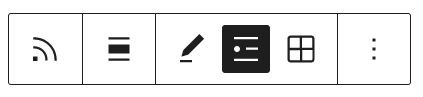
- Align the content left, center, or right (also includes wide and full-width options if supported by your theme)
- Edit the RSS feed URL you inserted
- List view to show the content in a list (example above)
- Grid view to show the content in a grid (example above)
📌
If you do not see the option to change the width of the block to wide or full-width and your theme supports these options, it is possible the block has been added to a Group block. You can learn more about the Group block here.
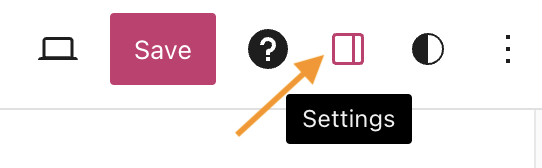
When you select a block, you will find additional block settings in the right sidebar. If you do not see the sidebar, you may need to click the Settings icon in the top-right corner to bring up the settings. This icon looks like a square with two uneven columns:
In the block settings in the right sidebar, you can choose the number of items that will display from the RSS feed. The maximum number of items is 10. The most recent items will always be shown.
You can also choose to display or hide the author’s name, the date of publication, and the post’s excerpt.

To use the RSS shortcode, you’ll need the URL of the feed you want to embed. Once you have the feed link, add it to your post or page by converting it into a shortcode using this format:
[rss url=https://wordpress.com/blog/feed]
You can add this shortcode to any page or post using a shortcode block. The number of items displayed from the RSS feed will be determined by the feed owner.
There are several ways you can customize your feed:
| Option | Description | Choices | Default Setting |
|---|---|---|---|
| show_title | Display the article title (If titles are hidden, links will be automatically hidden as well.) | true, false | true |
| show_links | Displays the article title as a link | true, false | true |
| show_summary | Displays an excerpt of the article | true, false | true |
| show_author | Displays the author of the article | true, false | false |
| show_date | Displays the date the article was published | true, false | false |
| reverse | Reverses the order of the listed articles | true, false | false (most recent at top) |
[rss url=https://wordpress.com/blog/feed show_title=false]

[rss url=https://wordpress.com/blog/feed show_author=true show_date=true]
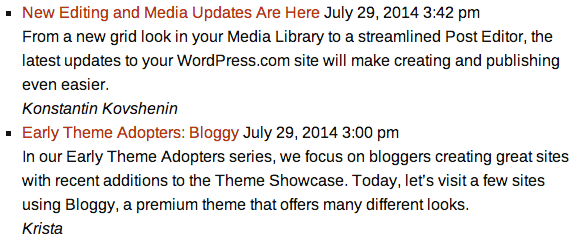
[rss url=https://wordpress.com/blog/feed show_summary=false]

If you’re seeing this error:
An error has occurred; the feed is probably down. Try again later.
There’s either an error with your feed URL or the feed itself is down. Here are some steps to troubleshoot your RSS feed shortcode:
- Make sure you include
http://orhttps://in your domain - Do not use quotes
- Confirm that your feed URL validates using this feed validator.
- If your feed URL is PHP, the additional parameters at the end may cause issues. Try removing everything after .php including the question mark.


